A few days ago, my VS Code Copilot, which had been working fine, suddenly started making a gurgling sound.
It almost sounded like a frog... At first I had no idea where the sound was coming from, so VS Code never even crossed my mind. But after watching more carefully, I realized the sound happened when it was waiting for a user command.
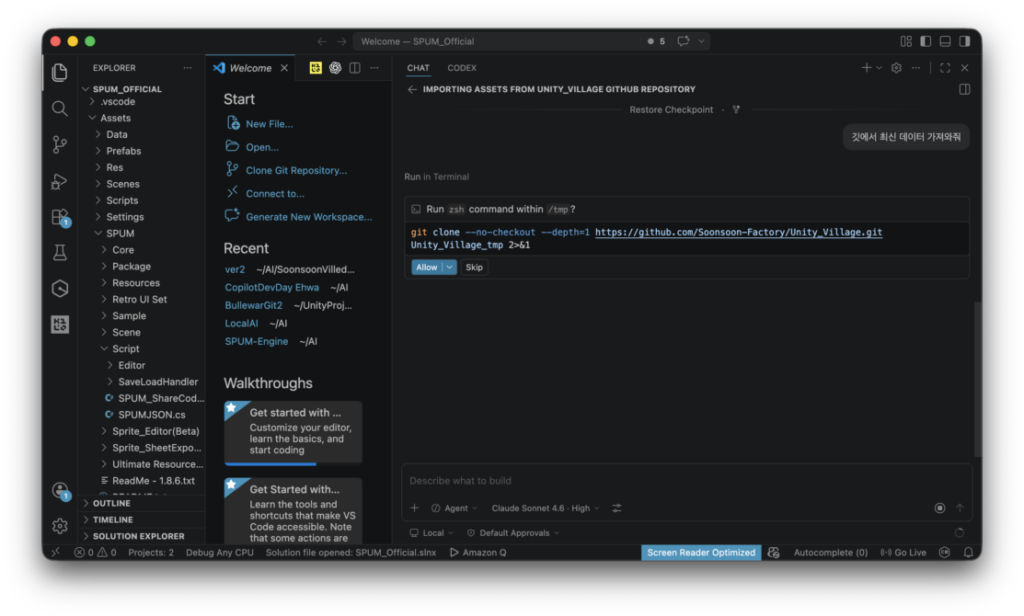
This had never happened before, so I wondered why it had suddenly started. After searching around, it looks like this is actually a fairly old and well-known Copilot-related bug.
I am not completely sure why, but it seems to happen when screen reader accessibility mode is enabled.
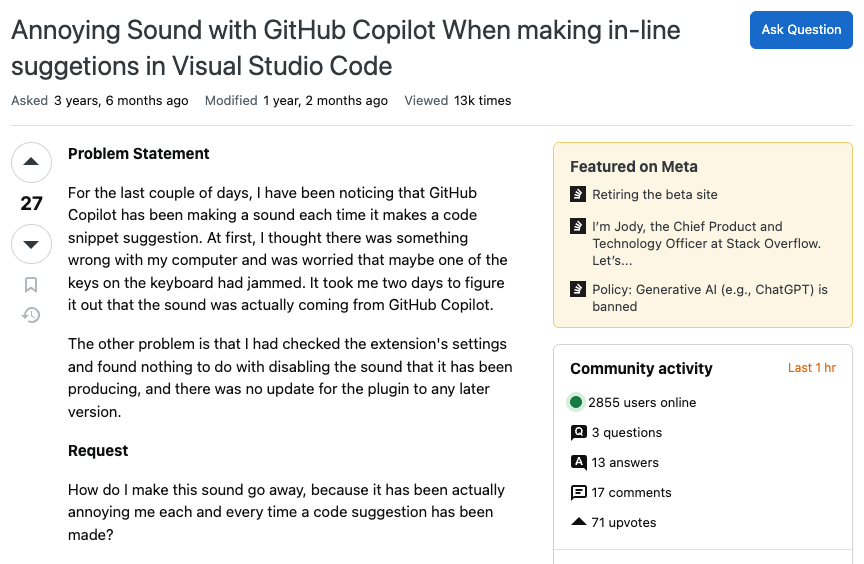
It seems to be the kind of bug that appears after a VS Code update.
Now, shall we turn it off?
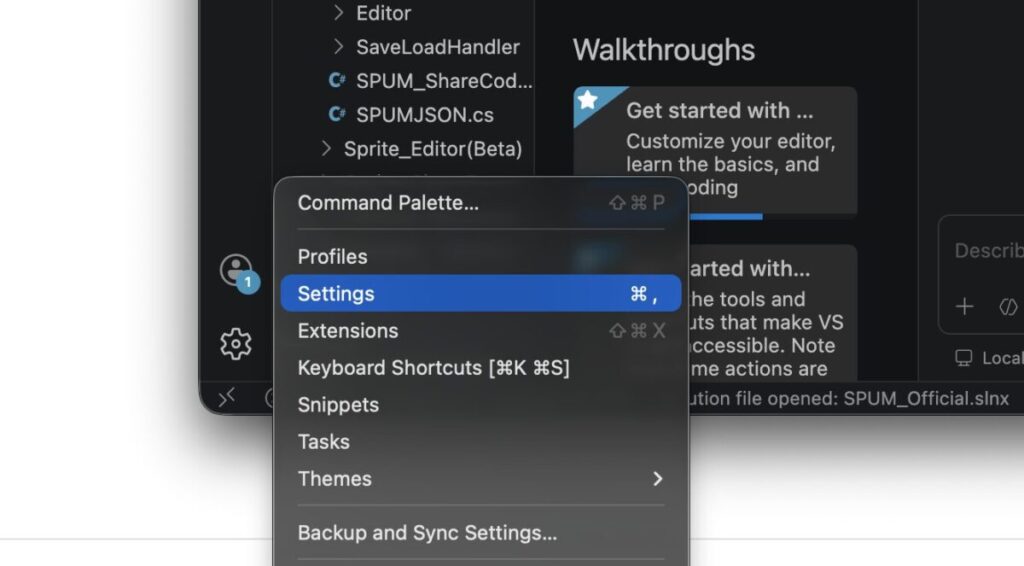
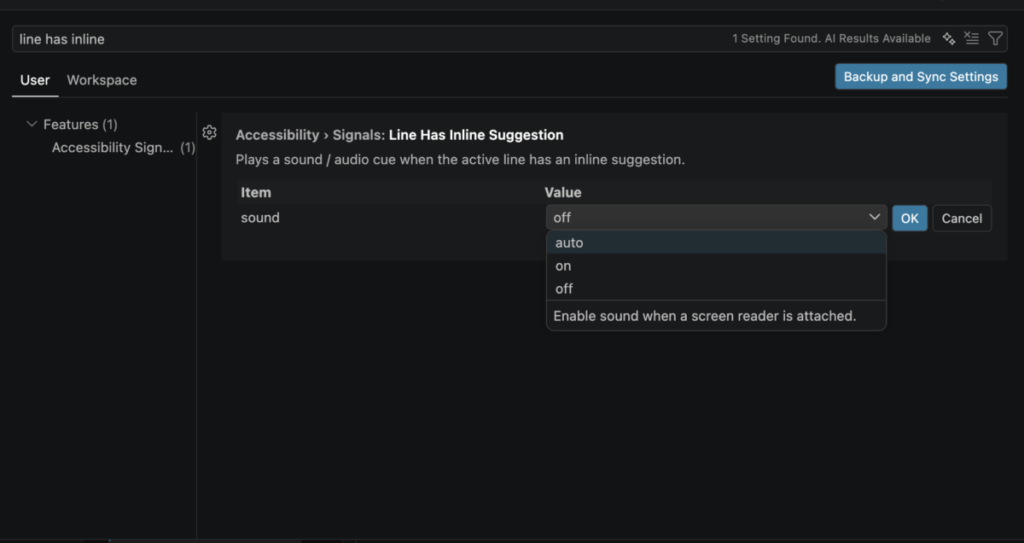
The commonly suggested method is to open Settings, type line has inline into the search box, and turn the sound setting off.
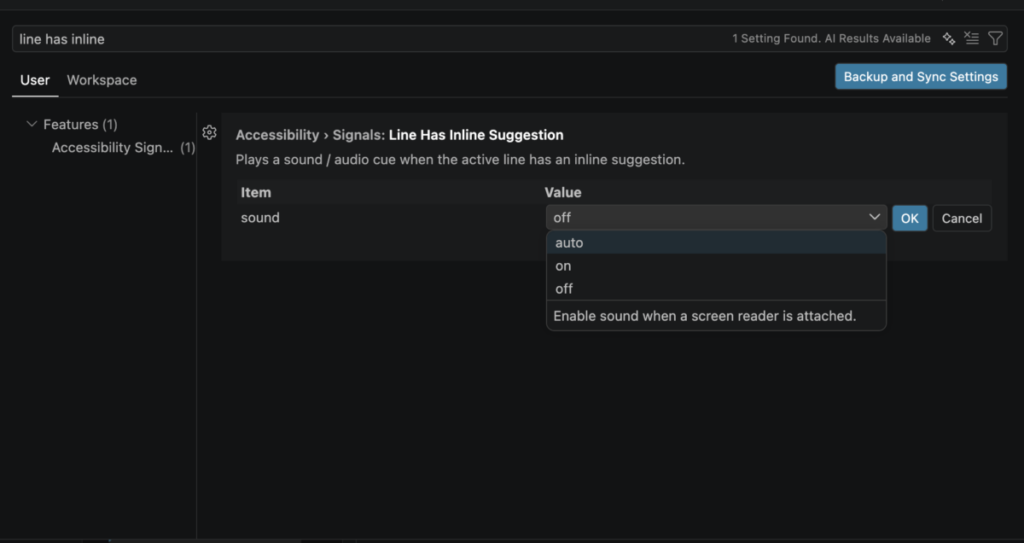
But in my case, the sound still played even after that.
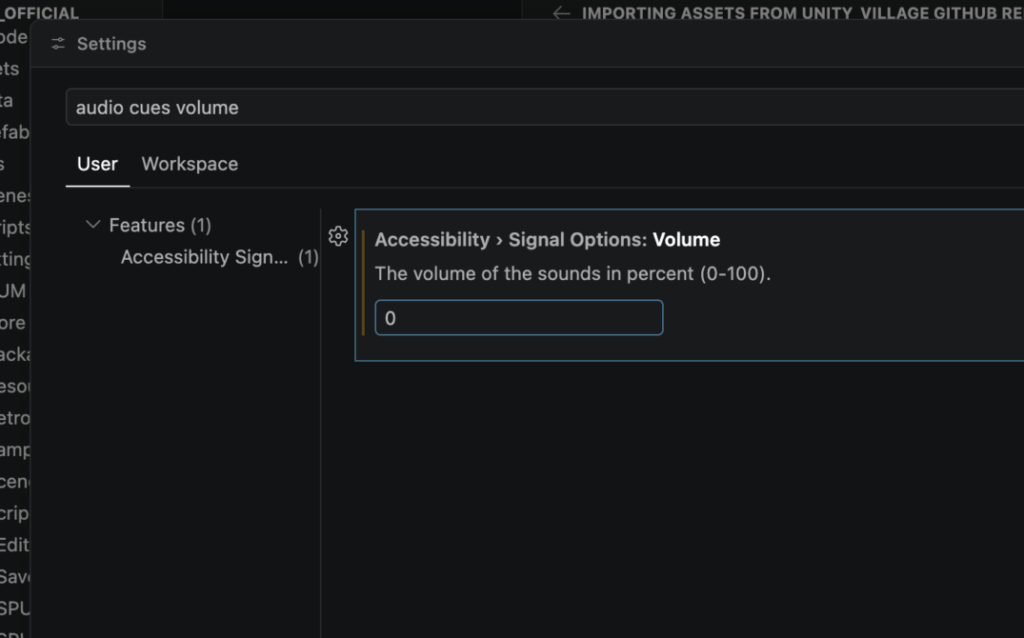
So I chose a different approach and disabled the audio cues entirely.
If you open Settings and search for audio cues volume, the sound will stop.
That wraps up this quick tip on how to stop the frog-like gurgling sound in VS Code Copilot.