Today I want to introduce how to use Amazon Q inside VS Code.
With this setup, you can use it somewhat like Cursor or GitHub Copilot. It is quite useful because you can code with Claude 4 and 4.5 either for free or at a relatively low cost.
First, install the Q extension from the VS Code extension marketplace.
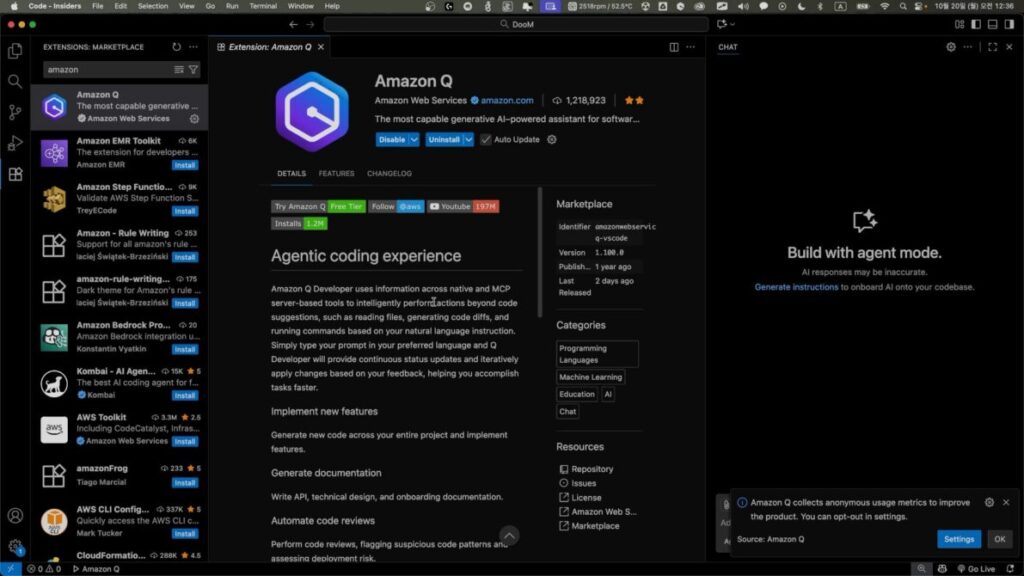
Once the installation is complete, for some reason the Q icon does not show up in the left sidebar. Instead, it appears rather awkwardly in the lower-left area of the screen.
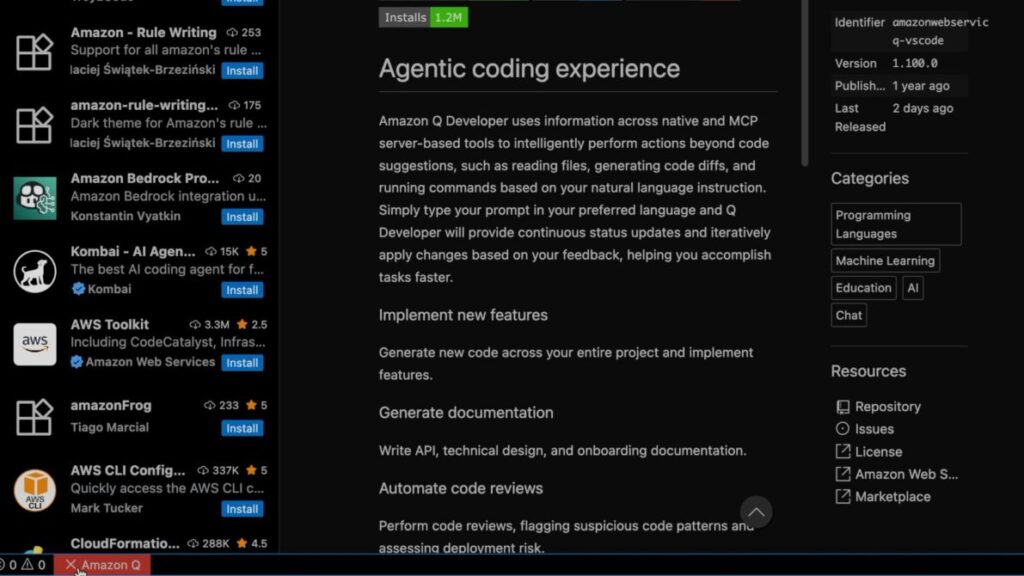
Because it is highlighted in red like a warning, it should not be too hard to spot.
Clicking it will reveal the sign-in menu. You should see a top menu item labeled Sign in to get started. Select that option.
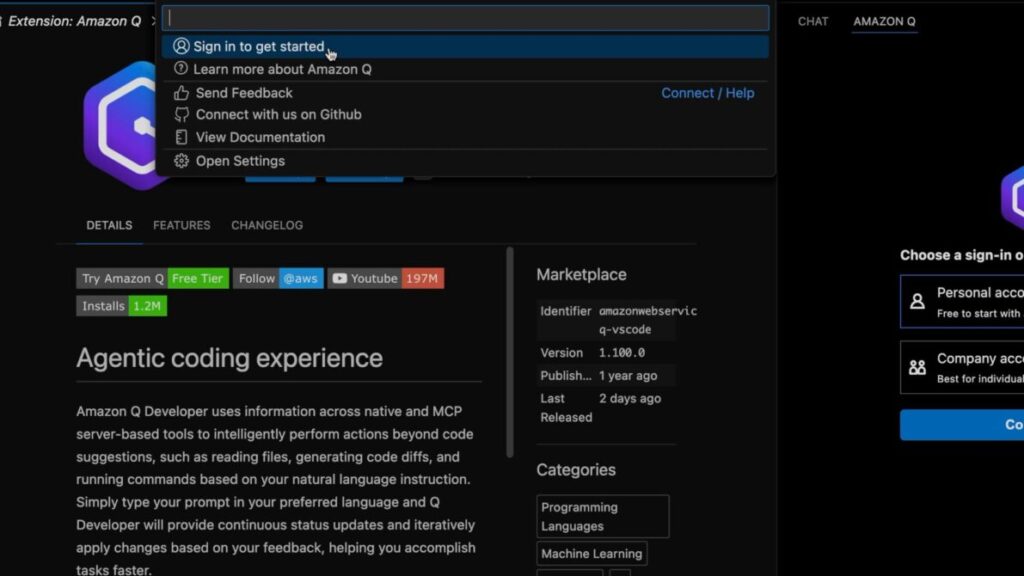
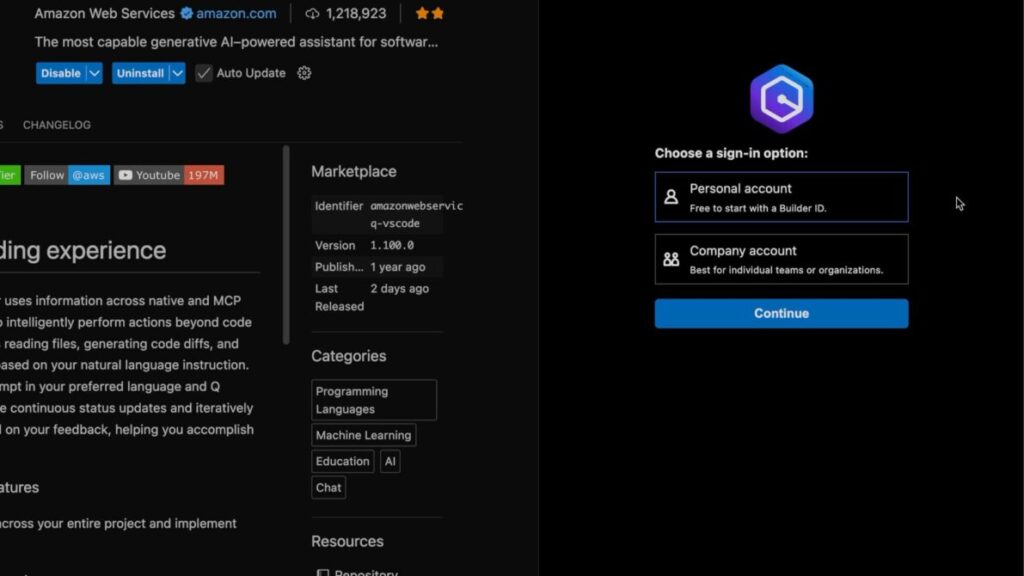
Then a separate window opens and asks whether you want to use it for personal or business purposes. If you are using the free Builder ID that I introduced before, choose the personal option. If you are using it through a paid subscription, choose the business option.
Whichever option you choose, you will be taken to a portal login and then asked to authorize the connection through a confirmation window like the one below.

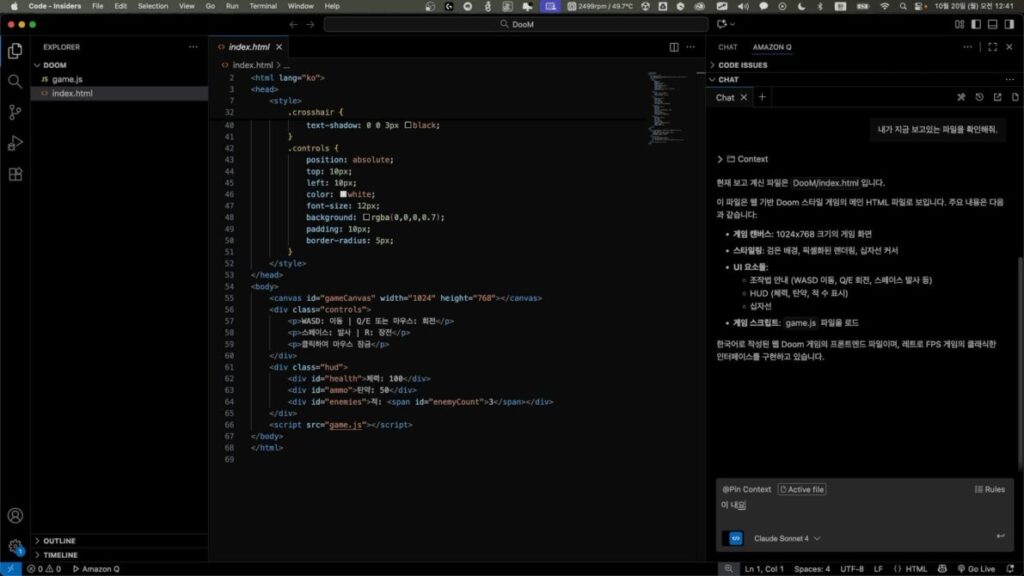
Once that is done, Amazon Q becomes available inside VS Code almost like Cursor or Copilot. As of the date of this post, the available models are Claude Sonnet 4 and 4.5.
In my experience, 4.5 is much more powerful, but it also hits usage limits fairly often. Because of that, Claude 4 currently feels like the more stable choice for everyday work.
If you want the full process, please refer to the video below.
Personally, I think using Q inside an IDE like VS Code and using it from the CLI each has its own strengths.
Working at the CLI level is great for what people often call vibe coding, where you move quickly and let the model drive more of the flow. But when you need to do real production work and carefully inspect code, file structure, and each step of the process, using it inside the IDE often feels better.
Of course, a lot of this depends on your own working style, and I still need to spend more time experimenting before I can say anything final.
That is all for today's quick tip.